How to Automate HubSpot Lead Follow-Up (Zapier Guide)
[ SUMMARIZE WITH AI ]
Workflow Audit
]99% sure you are not seeing all the spots AI can help you in your business.
Are your workflows optimized with the most up to date solution, or are they costing you and your team time and money?
GET FREE AUDITZapier automates HubSpot lead follow-up by triggering actions — email sends, task assignments, Slack alerts — the moment a new contact enters your CRM, a form gets submitted, or a deal stage changes. Teams using Zapier for HubSpot follow-up typically cut lead response time from several hours to under 5 minutes and recover 8–15 hours per week previously spent on manual CRM updates. The five most effective workflows cover new contact assignment, multi-source lead capture, deal stage sequencing, inactive lead re-engagement, and hot lead calendar routing.
Fastest ROI workflow: New HubSpot contact → assign owner + send immediate personalized email — this single Zap eliminates the response gap that research from Harvard Business Review shows reduces lead qualification odds by 21x when response takes over an hour. Lead routing: A 3-step Zap handles contact creation, rep assignment, and Slack notification in under 2 minutes — no spreadsheet, no manual handoff. CRM data quality: Zapier syncs HubSpot contacts from 6,000+ sources without manual entry, cutting data errors by 60–90% in most setups. Cost to implement: Zapier Professional ($73/month for 2,000 tasks) covers most B2B follow-up workflows; most teams see improvement within the first 7 days. When to skip Zapier: If all your follow-up sequences live entirely inside HubSpot, use HubSpot's native workflow tool instead — Zapier is the right choice only when other tools are in the chain.

You already know you need to automate your HubSpot follow-up. The question is which specific Zapier workflow actually closes the handoff where your leads are going quiet.
The problem most teams have isn't a lack of automation — it's that the automation in place doesn't match where the breaks actually happen. Most HubSpot users have something running: a form that creates contacts, maybe a welcome email. But leads still go cold between that first contact and the moment a rep takes real ownership.
The handoff points that cost the most are predictable: the moment a new lead enters HubSpot without triggering an assignment, the moment a deal changes stage without firing a follow-up task, and the moment a contact hasn't heard from you in 5+ days without anyone noticing. Each of those is a fixable Zap.
Once those three handoffs are automated, the results are measurable. Response times compress. Reps get notified in the tools they already use. Leads that were going cold start receiving timely, contextual outreach. And the outreach gets matched to where the lead actually is in the pipeline — not a generic blast to everyone.
Not sure which of your HubSpot handoffs is costing you the most? We map your exact drop-off points and build the Zapier workflows that close each one. See How We Diagnose This →
Table of Contents
- The 5 Zapier Workflows That Stop HubSpot Leads from Going Cold
- How to Build the 3 Highest-Impact Workflows: Step by Step
- ROI, Cost, and When to Use Zapier vs Alternatives
- Who This Is For
- Frequently Asked Questions
The 5 Zapier Workflows That Stop HubSpot Leads from Going Cold
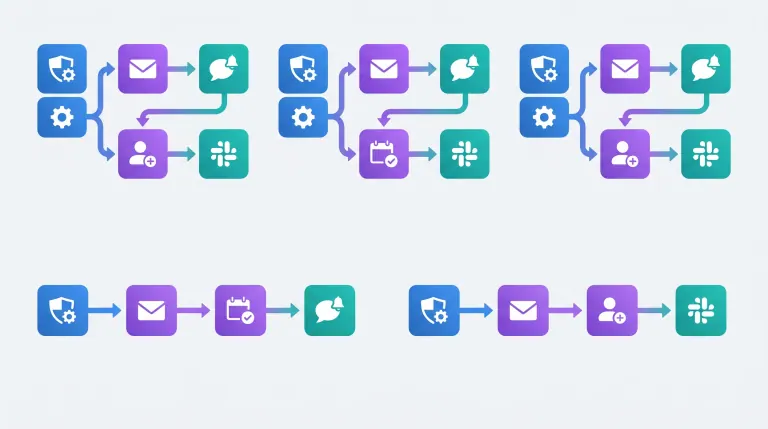
Most HubSpot lead follow-up problems trace back to 5 specific handoff failures. Here's the workflow that closes each one.
1. New contact created → assignment + immediate follow-up email
The break: A lead fills out a form, gets added to HubSpot, and waits. No rep is notified. No email goes out. The lead cools while your team catches up manually hours later.
The Zap:
- Trigger: New contact in HubSpot
- Action 1: Assign contact to a rep based on territory or lead source property
- Action 2: Send a personalized follow-up email from the rep's Gmail using the lead's name and form data
- Action 3: Create a follow-up task in HubSpot due in 24 hours
This is the highest-ROI workflow for most B2B teams because it closes the response window entirely. Harvard Business Review research found leads contacted within 5 minutes were 21x more likely to qualify than those responded to after an hour. That gap exists in almost every team that doesn't have this Zap running.
2. Multi-source lead capture → HubSpot + Slack notification
The break: Leads come from LinkedIn ads, webinar registrations, event check-ins, and referral forms — each flowing into a different spreadsheet or inbox. HubSpot doesn't have them. Reps don't know they exist.
The Zap:
- Trigger: New row in Google Sheets (or new Typeform entry, Facebook Lead Ad, or event registration)
- Action 1: Create or update contact in HubSpot — use email as the deduplication key
- Action 2: Post to Slack #new-leads with name, company, source, and a direct HubSpot link
- Action 3: Tag the contact with the source property for routing rules
This workflow consolidates every lead channel into one CRM view without requiring every tool to have a native HubSpot integration. Salesforce's State of Sales research shows reps spend only 28% of their week actually selling — manual lead capture cleanup accounts for a significant chunk of the rest.
3. Deal stage change → automated follow-up sequence
The break: A deal moves to "Proposal Sent" but no follow-up is triggered. The rep assumes the prospect got the proposal. Three days pass. The prospect assumes the rep is following up. Nobody moves.
The Zap:
- Trigger: Deal stage updated in HubSpot to "Proposal Sent"
- Action 1: Send a day-3 follow-up email from the assigned rep's Gmail
- Action 2: Create a task in HubSpot due in 7 days if no response
- Optional: Log call activity if your team uses a VoIP tool like Dialpad or RingCentral
This workflow is especially effective for B2B sales cycles with multiple touches needed between proposal and close.
4. Inactive lead re-engagement trigger
The break: Contacts in HubSpot go 14+ days without an activity log. They're not lost — they're forgotten.
The Zap:
- Trigger: HubSpot contact property "Last Activity Date" exceeds 14 days
- Action: Add the contact to a re-engagement sequence in your email tool (ActiveCampaign, Mailchimp, Klaviyo)
This workflow is particularly useful for teams on HubSpot's Starter or Free tier, which don't include advanced re-engagement branching in native workflows.
5. Hot lead form submission → immediate calendar link
The break: A lead submits a form indicating they're ready to talk but waits for a rep to manually send them a booking link. That delay introduces friction that kills 15–30% of call bookings before they happen.
The Zap:
- Trigger: New HubSpot form submission with a "Ready to talk" or "High intent" response
- Action 1: Update the contact lifecycle stage to "Sales Qualified Lead"
- Action 2: Send an immediate email with a Calendly booking link
- Action 3: Post to Slack so the rep can monitor and follow up if the slot isn't booked within 24 hours
The lead goes from form submission to a scheduled call without manual intervention.
Running some of these but not seeing results? The issue is usually in the setup — filter logic, contact duplication, or a missing step. We audit and fix Zapier + HubSpot workflows in 1–3 business days. Book a Workflow Audit →
How to Build the 3 Highest-Impact Workflows: Step by Step
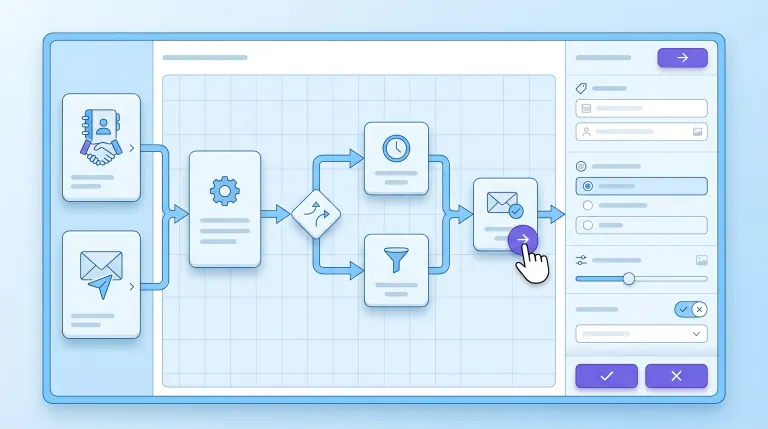
Here's the setup guide for the three workflows that deliver the fastest measurable improvement.
Workflow A: New Contact → Assignment + Email
- Log in to Zapier. Click "Create Zap."
- Trigger: Choose HubSpot → "New Contact." Connect your HubSpot account. Test the trigger — it should pull in a sample contact.
- Action 1: Choose HubSpot → "Update Contact." Set the "Owner" property using a filter or lookup table (by territory, lead source, or round-robin).
- Action 2: Choose Gmail → "Send Email." Map the "To" field to the contact's email. Use HubSpot contact properties (
{{first_name}},{{company}}) to personalize the subject and body. - Action 3: Choose HubSpot → "Create Task." Set due date to "1 day from now." Assign to the same owner from Step 3.
- Test with a real form submission. Verify the email sends, the task appears in HubSpot, and the owner is assigned correctly.
Setup time: 30–45 minutes for a working first version. Allow an extra hour for personalization and edge-case testing.
Critical filter: Add a filter step after the trigger to exclude contacts created by imports or list syncs. Without this, the Zap fires for every bulk upload.
Workflow B: Multi-Source Capture → HubSpot + Slack
- Choose your lead source as the trigger (Google Sheets: "New Row"; Typeform: "New Entry"; Facebook Lead Ads: "New Lead").
- Add a Formatter step to clean up name fields — capitalize, strip extra spaces, handle missing values.
- Action 1: HubSpot → "Create or Update Contact." Map form fields to HubSpot properties carefully. Use email as the deduplication key, not name.
- Action 2: Slack → "Send Channel Message." Include lead name, company, lead source, and a direct HubSpot contact URL.
- Enable the Zap. Monitor your HubSpot contacts view for duplicates in the first 48 hours — this is where most setups break.
Workflow C: Deal Stage Change → Follow-Up Sequence
- Trigger: HubSpot → "Deal Stage Changed." Add a filter: only continue when new stage equals "Proposal Sent."
- Action 1: Gmail → "Send Email" from the assigned rep's account. Keep the subject and body short — 3 sentences max.
- Action 2: Add a Delay step — 7 days.
- Action 3: HubSpot → "Create Task" — "Check in if no response."
Important: This Zap should pause when the deal stage changes again (meaning the rep acted or the deal progressed). Without a pause condition, it fires regardless of intervening activity and creates duplicate outreach. Zapier's Paths feature handles this; alternatively, use HubSpot's native workflow to cancel the sequence when stage changes.
Zapier setup taking longer than expected — or breaking silently? We build and maintain these workflows for B2B HubSpot teams. Most integrations go live in 2–5 days. Talk to Our Team →
ROI, Cost, and When to Use Zapier vs Alternatives
What Zapier for HubSpot Actually Costs
| Plan | Monthly Cost | Task Limit | Best For |
|---|---|---|---|
| Free | $0 | 100 tasks/month | Testing 1–2 simple Zaps |
| Starter | $29/month | 750 tasks/month | Under 50 new leads/month |
| Professional | $73/month | 2,000 tasks/month | Most B2B teams |
| Team | $103/month | 2,000+ tasks/month | Multi-rep teams, shared Zaps |
A typical B2B team running 3–5 active follow-up workflows processes 400–1,200 tasks per month, putting the realistic cost at $29–73/month. Tasks are counted per action step — a 3-step Zap uses 3 tasks per trigger event.
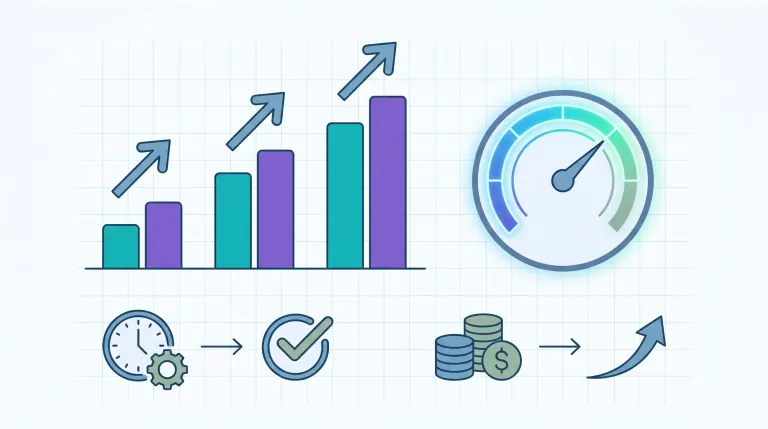
Before vs. After: A Realistic 30-Day Snapshot
| Metric | Before Zapier | After (30 Days) |
|---|---|---|
| Avg. lead response time | 4–8 hours | Under 5 minutes |
| Weekly manual CRM update time | 6–10 hours | Under 1 hour |
| Leads with follow-up task created | ~65% | 98%+ |
| Missed stage-change follow-ups | 30–40% | Under 5% |
A B2B team with 2 reps recovering 8 hours/week at a $40/hour blended rate saves $640/week — or about $2,560/month. With Zapier costing $73/month, the return is roughly 35x on direct time savings alone, before accounting for the revenue from faster lead qualification. McKinsey research on automation consistently shows that automating repetitive operational tasks delivers 20–30% productivity gains in the first year.
For a deeper look at measuring automation ROI across your full operations, see our guide to workflow automation ROI for B2B businesses.
Zapier vs Alternatives for HubSpot Follow-Up
Native HubSpot Workflows are the right choice when your entire sequence lives inside HubSpot — nurture emails, lifecycle stage updates, internal rep notifications. They don't need Zapier. When your follow-up requires a tool outside HubSpot's native ecosystem (Gmail, Slack, Typeform, Calendly), Zapier is the bridge.
Make (formerly Integromat) handles more complex multi-step logic at a lower per-task cost. The learning curve is steeper and the interface is less intuitive than Zapier. Worth evaluating if your follow-up workflows grow beyond 5,000 tasks/month.
n8n gives full control and the lowest ongoing cost, but requires a technical person to set up and maintain. Realistic for teams with a developer or technical ops resource. See our n8n vs Zapier comparison for B2B workflows for a cost-by-volume breakdown.
Direct API integrations are the fastest and most reliable — but require a developer and ongoing maintenance. Only worth building custom when your Zapier bill exceeds $500–600/month or when latency is critical.
For most B2B teams with under 5,000 tasks/month and no in-house developer, Zapier is the right starting point. The AI Operating System we build for clients typically combines Zapier for quick-win follow-up workflows with native API integrations for the highest-volume, business-critical paths once those patterns are proven.
Not sure whether Zapier, Make, n8n, or native HubSpot workflows fit your situation? We help B2B teams pick the right stack for their specific lead volume, CRM setup, and budget. Get the Recommendation →
Who This Is For
This is a strong fit if:
- You use HubSpot and leads are falling through the cracks between it and other tools
- Your team spends time manually updating CRM records, assigning contacts, or sending follow-ups
- You have 3–100 new inbound leads per week and no automated follow-up running
- You want to compress lead response time without adding headcount
- You're evaluating Zapier, Make, or n8n and need a concrete cost and effort comparison
Consider alternatives if:
- Your follow-up sequence lives entirely inside HubSpot — use native workflows instead
- You're processing more than 10,000 tasks/month — at that volume, n8n or Make will be more cost-effective
- Your CRM isn't HubSpot — some patterns apply to Salesforce, but the triggers and field mappings differ
Why AIessentials specifically? We build and maintain Zapier + HubSpot integrations as part of the complete 24/7 Pipeline Engine — the full inbound, follow-up, and qualification system for B2B companies who want their pipeline running without manual work. Most workflow implementations go live in 5–10 business days, and we include a 90-day support window so issues get caught and fixed before they cost you leads.
Frequently Asked Questions
What are the best Zapier workflow examples for HubSpot lead follow-up in B2B?
The five highest-impact workflows are: new contact assignment with immediate email, multi-source lead capture into HubSpot plus Slack, deal stage change triggering a follow-up sequence, inactive lead re-engagement, and hot lead submission sending an automatic calendar link. Start with the new contact assignment workflow — it closes the most common response time gap and takes 30–90 minutes to set up and test.
What is the typical ROI of Zapier workflow examples for HubSpot?
A B2B team with 2 reps typically recovers 8–15 hours per week in manual CRM work. At a $40/hour blended rate, that's $1,280–$2,400/month in time savings. Zapier Professional costs $73/month. The financial return usually clears within the first week. The revenue impact from faster lead qualification typically becomes measurable within 30–60 days, depending on sales cycle length.
How does Zapier compare to other automation tools for HubSpot lead follow-up?
Zapier is the easiest starting point for teams with no technical resources and under 5,000 tasks/month. Make offers more complex logic at lower per-task cost but with a steeper learning curve. n8n gives full control at the lowest ongoing cost but requires a technical person to manage. Native HubSpot Workflows are best for internal sequences that never touch tools outside HubSpot.
What are the most common Zapier mistakes in HubSpot lead follow-up?
Four mistakes cause most problems: (1) Triggering on "new contact" without a filter, which fires for every import and list sync — add a source filter immediately; (2) not using email as the deduplication key, which creates duplicate contacts; (3) sending follow-up emails without checking if a rep already reached out; (4) not testing with a real lead before activating — Zapier's sample test data often doesn't reflect actual form field mapping.
Are there HubSpot Zapier workflow case studies that show measurable results?
B2B teams using the new contact → assignment + immediate email Zap consistently report response time dropping from 4–8 hours to under 5 minutes. Teams with multi-source capture Zaps eliminate an average of 6 hours/week in manual data entry. The revenue impact varies by sales cycle, but teams with average deal values above $5,000 typically see positive ROI from faster qualification in the first month.
How long does it take to implement Zapier workflow examples for HubSpot?
A single workflow (new contact → email + task) takes 30–90 minutes to build and test. A complete 3–5 workflow follow-up stack takes 1–3 days if you're building it yourself. The most common setup mistakes — bad field mapping, duplicate contacts — usually surface in the first 48 hours of live operation and take another hour or two to resolve.
Is Zapier the right choice for HubSpot lead follow-up in B2B?
Zapier is the right choice when your follow-up involves tools outside HubSpot's native ecosystem — Gmail, Slack, Google Sheets, Calendly, LinkedIn, event platforms. It's not the right choice if you only need internal HubSpot sequences (use native workflows), if you need highly complex branching logic (Make handles this better), or if you're at very high task volumes (consider n8n).
How long does it take to see results after setting up Zapier workflows for HubSpot?
Most teams see operational improvement — shorter response times, more tasks created, fewer missed leads — within the first 7 days. Revenue impact from faster lead qualification typically shows up within 30–60 days depending on your average sales cycle. If you're 30 days in and see no change, the issue is usually a filter problem causing the Zap to fire on the wrong contacts, or a missing deduplication step.
What is the full cost breakdown for Zapier HubSpot lead follow-up workflows?
Zapier Free supports 100 tasks/month — enough for low-volume testing with 1–2 simple Zaps. Starter ($29/month, 750 tasks) works for teams with under 50 new leads/month. Professional ($73/month, 2,000 tasks) covers most B2B teams. Each action step in a Zap consumes one task per trigger — a 3-step Zap uses 3 tasks per run. For 100 new contacts/month with 3-action Zaps, you'd use 300 tasks/month, well within the Starter tier.
What are the most common mistakes when getting started with Zapier workflow examples?
Beyond technical errors, the most common strategic mistake is automating a broken process. If your current follow-up message doesn't convert, automating it faster just delivers more of the same result at higher volume. Fix the message and ownership logic first, then automate. The second most common mistake is running too many Zaps at once without monitoring — a misconfigured Zap can send duplicate emails to every contact in your CRM before you notice.
Conclusion
The five workflows in this post — new contact assignment, multi-source capture, deal stage sequencing, re-engagement, and hot lead calendar routing — directly address the handoff points where HubSpot leads go quiet.
For most B2B teams, Workflow A (new contact → assignment + email) is the right starting point. It's buildable in under an hour, delivers measurable results within a week, and closes the most expensive lead loss point in most CRM setups. The cost to run it is $29–73/month. The cost of not running it is harder to measure, but it shows up in your response time data and your close rate.
Build one workflow. Watch it for a week. Then add the next one.
Not sure where your leads are actually dropping off in HubSpot? We map your handoff points, identify the 2–3 biggest leaks, and show you exactly which Zapier workflows close them. Book a Free Lead Audit →

Iliyan Ivanov
Founder of AIessentials · AI automation consultant helping B2B businesses save 20+ hours/week and grow without hiring